

If you want to make your videos sharper and more engaging, knowing how to trim and cut scenes is a must. With InVideo Ai, you have a powerful tool right at your fingertips that makes video editing simple and fast—even if you’re new to it.
Imagine removing unwanted parts, splitting scenes exactly where you want, and polishing your content without any hassle. By mastering these quick editing tricks, you’ll boost the impact of your videos and keep your audience hooked from start to finish. Ready to cut out the clutter and create videos that truly shine? Let’s dive into how you can easily trim and cut scenes using InVideo Ai. Start editing smarter today with InVideo Ai — check it out here: InVideo Ai Video Generator
Introduction To Trimming And Cutting Scenes In Invideo Ai
InVideo AI is a simple tool for video editing. It helps users cut and trim videos easily. Trimming means removing unwanted parts at the start or end. Cutting means splitting the video into smaller parts. These skills help make videos clear and focused.
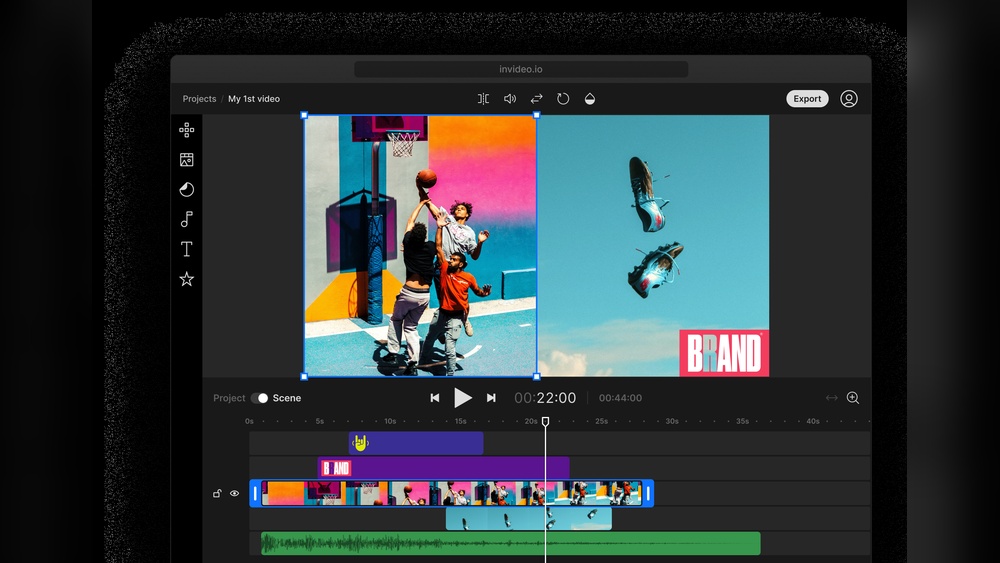
The editing interface shows a timeline with your video scenes. You can click on the timeline to select where to cut. Tools like split or slice make it easy to separate scenes. After trimming or cutting, unwanted parts can be deleted quickly.
| Feature | Use |
|---|---|
| Upload Video | Start editing by adding your video file |
| Timeline | View and select parts of the video to edit |
| Split Tool | Cut video into smaller clips at chosen points |
| Delete Scene | Remove unwanted clips from the video |
| Download | Save your edited video without watermark |

Credit: zapier.com
Key Features For Trimming And Cutting In Invideo Ai
The timeline in InVideo AI helps you choose exact start and end points for your clip. Drag the handles to mark the part you want to keep. This makes trimming very simple and accurate.
The Split and Slice tools let you cut your video into smaller parts. Click on the timeline where you want to split, then use these tools to separate the scenes. This helps when you want to remove or move segments easily.
| Stream Menu Option | Function |
|---|---|
| Trim | Quickly cut start or end of a clip |
| Split | Divide video into two parts |
| Delete | Remove unwanted scenes fast |
The real-time preview shows your edits instantly. You can see changes and make adjustments quickly. This saves time and ensures your video looks just right.
Step-by-step Guide: How To Trim And Cut Scenes In Invideo Ai
Start by uploading your video file to InVideo AI. Use the ‘Upload your video to cut’ button and select your file. Once uploaded, the video appears on the timeline. This lets you prepare the clip for editing quickly. The timeline shows the entire video length clearly. You can zoom in to see details.
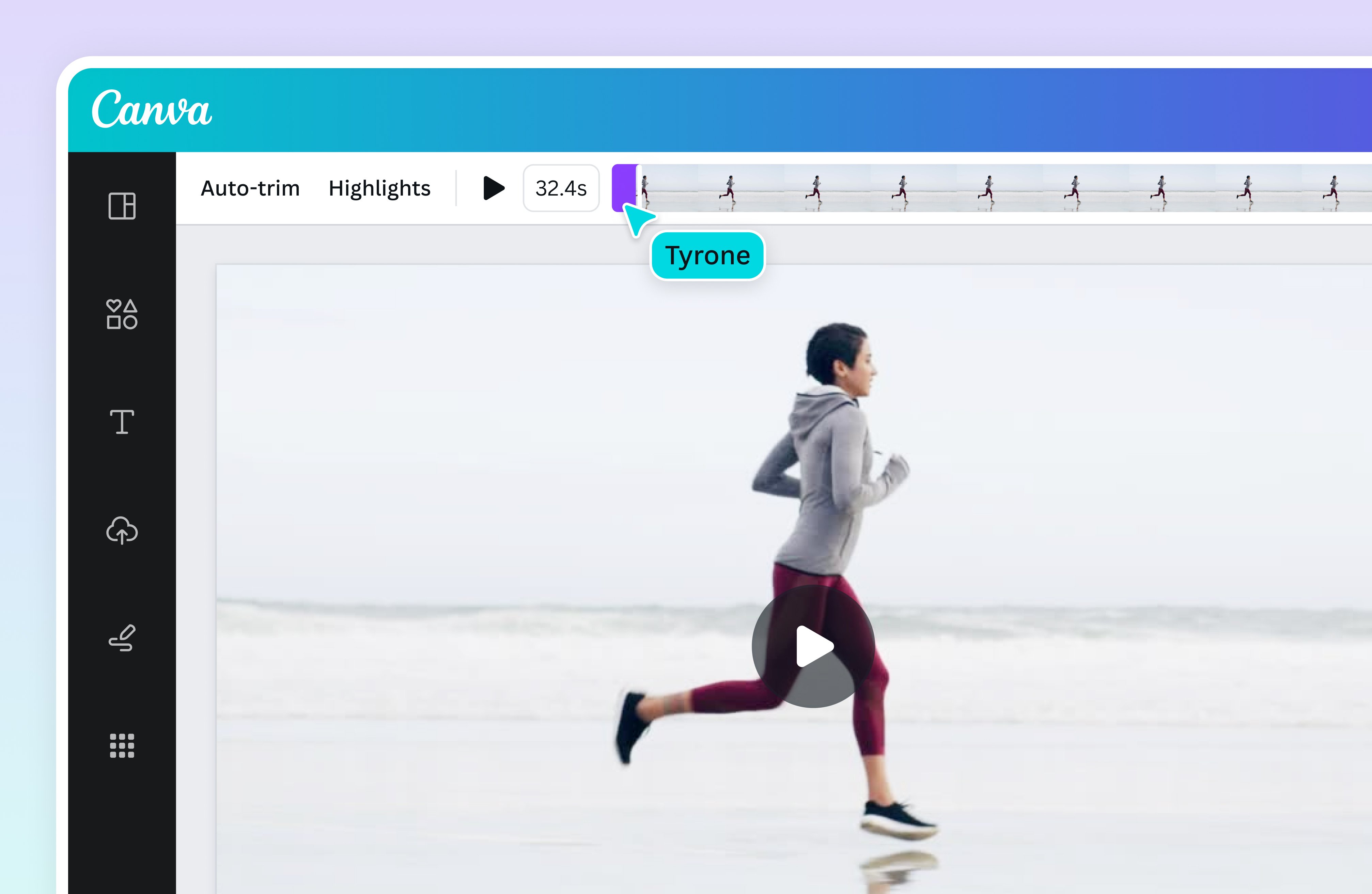
To trim unwanted parts from the start or end, drag the edges of the timeline. Move the handles inward to cut unwanted sections. This removes any extra footage easily. The preview updates instantly to show changes.
Splitting scenes is simple. Click on the timeline where you want to split. Use the split or slice tool to divide the video into segments. You can delete or rearrange these parts as needed. This helps in removing mistakes or changing the order.
After editing, click the ‘Done’ button to finish. Export your video without watermarks. Download your new video in the format you want. Now your video is ready to share or upload.

Credit: invideo.io
Pricing And Affordability Of Invideo Ai Editing Tools
The free version of InVideo AI allows basic trimming and cutting of videos. Users can remove unwanted parts from the start or end easily. However, some features like advanced scene splitting and longer video processing require a paid plan.
Subscription plans offer more editing tools and higher video quality. Monthly and annual plans are available, providing better value for frequent users. Prices vary depending on the features and video length allowed.
| Plan Type | Key Features | Best For | Price Range |
|---|---|---|---|
| Free | Basic trimming, watermark on videos | Casual users, beginners | $0 |
| Paid | Advanced cutting, no watermark, longer videos | Professional editors, frequent users | $10 – $30/month |
Casual users may find the free tools enough. Professionals benefit from paid plans with more editing freedom. Consider your video needs before choosing a plan.
Pros And Cons Of Using Invideo Ai For Scene Trimming And Cutting
InVideo AI offers a simple and clean interface. Users can trim and cut scenes quickly without confusion. The timeline tool is easy to use, making video editing faster for beginners.
Fast processing speeds allow for quick video edits. This helps save time when working on multiple clips. The tool supports smooth trimming and cutting with just a few clicks.
Some feature limits exist, such as fewer advanced editing options. Users may find it hard to perform complex edits. This might require learning extra tools outside InVideo AI.
The learning curve is gentle but present. New users might need time to get used to all functions. Practice improves comfort and skill with the software.
| Aspect | Details |
|---|---|
| User Interface | Easy and clear for beginners |
| Processing Speed | Fast trimming and cutting |
| Feature Restrictions | Limited advanced editing tools |
| Learning Curve | Moderate; some practice needed |
From real use, the tool is reliable for basic editing. It works best for short videos and simple cuts. For complex projects, other software might be needed.
Credit: www.canva.com
Ideal Users And Scenarios For Invideo Ai Trimming Features
Content creators and social media influencers benefit greatly from InVideo AI’s trimming features. They can easily cut unwanted parts and keep videos concise for better engagement. Fast edits help maintain viewer interest on platforms like Instagram and TikTok.
Small businesses and marketing professionals use these tools to make promotional videos. Clear, focused clips improve message delivery. Trimming allows them to highlight key points without confusing the audience.
Educators and trainers find InVideo AI useful for creating instructional videos. They can remove pauses or mistakes to keep lessons smooth. Shorter videos help learners stay focused and understand material better.
Tips And Best Practices To Master Video Editing Fast With Invideo Ai
Use timeline markers to select scenes quickly in InVideo AI. Drag handles to trim videos from start or end. Splitting clips helps remove unwanted parts precisely. Keyboard shortcuts like Ctrl + K speed up cuts. Combine slice and trim tools for better control.
Avoid trimming too close to scene changes; it may cause glitches. Don’t forget to save your work often. Preview edits before exporting to ensure smooth transitions. Keep clips organized by naming them clearly. Use zoom on the timeline for detailed editing.
Frequently Asked Questions
How Do I Cut A Particular Part Of A Video?
Open your video in editing software like InVideo. Select the timeline and click the desired start and end points. Use the split or cut tool to isolate the part. Delete unwanted sections. Save or export the trimmed video. This method quickly cuts specific video parts.
Can I Use Invideo Ai To Edit My Videos?
Yes, Invideo AI allows you to easily edit videos by trimming, cutting, and splitting scenes directly on the timeline.
How Do I Delete A Scene In Invideo Ai?
To delete a scene in InVideo AI, select the scene on the timeline. Click the trash bin icon or press the delete key. Confirm the deletion if prompted. The scene will be removed instantly from your project. Save your work to keep changes.
How To Split Video In Invideo?
To split a video in InVideo, select the video on the timeline. Click the playhead where you want to split. Press the “Split” button or hit the C key. The video divides into two clips for easy editing.
Conclusion
Trimming and cutting scenes in InVideo Ai is simple and fast. You can remove unwanted parts easily using the timeline or split tools. This makes your videos look clean and professional. Practice these steps to improve your editing skills quickly. Start creating better videos today with InVideo Ai. Try it yourself by visiting InVideo Ai and see how easy video editing can be.
